
how to pair phone to car bluetooth is usually quick, but when the car won’t show up, the pairing code fails, or audio cuts out, it turns into a time sink at the worst moment.
This guide walks you through the common pairing flows for most cars and phones, plus the small “gotchas” that tend to block connection, like old pairings, privacy permissions, and head unit limits.
You’ll also get a simple checklist to diagnose your situation in under two minutes, a troubleshooting table you can skim, and a few practical tips for keeping the connection stable once it works. According to NHTSA, keeping your attention on driving matters, so set Bluetooth up while parked and use hands-free features where possible.
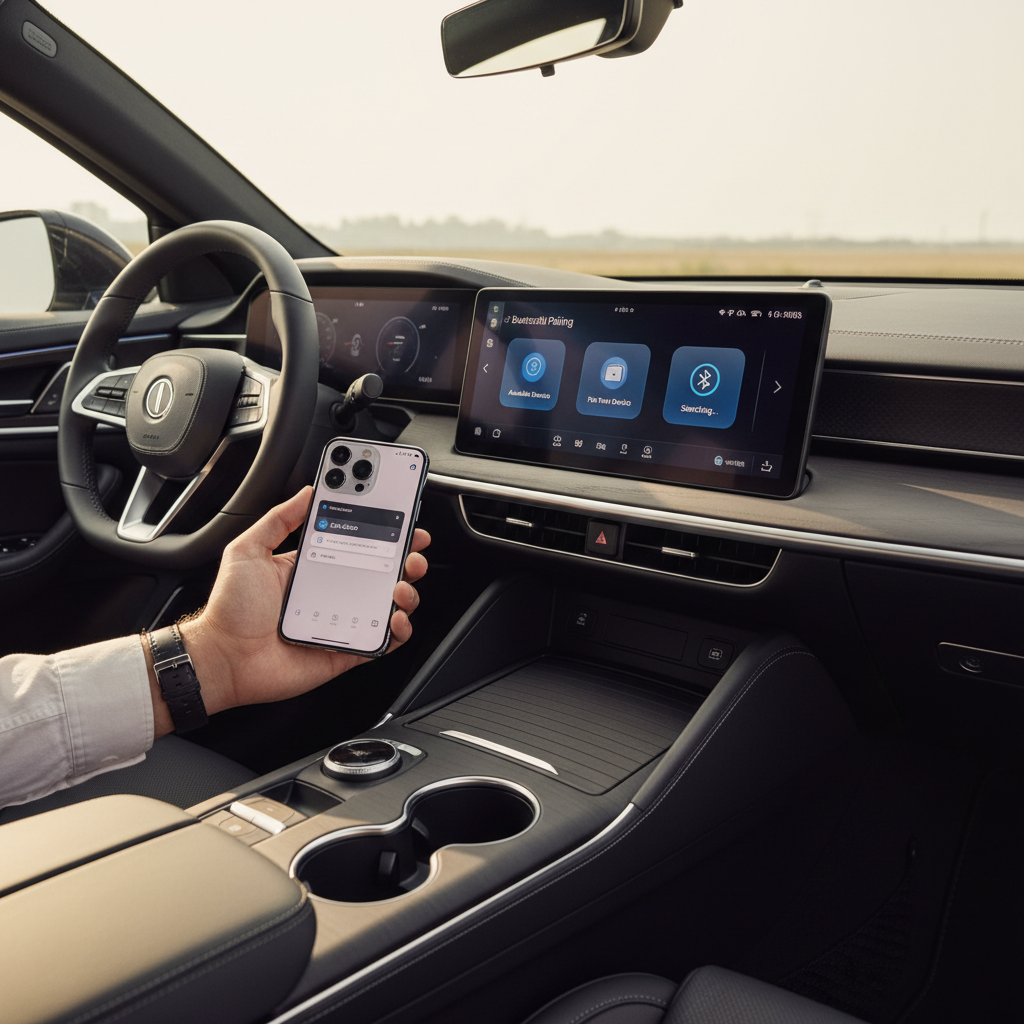
Before you start: what you need for a clean pairing
Most pairing failures come from leftover connections and skipped prompts, not from “broken Bluetooth.” A clean setup takes a minute and saves a lot of re-trying.
- Park first, then set up Bluetooth without rushing.
- Turn Bluetooth ON on your phone, and keep the phone unlocked during pairing.
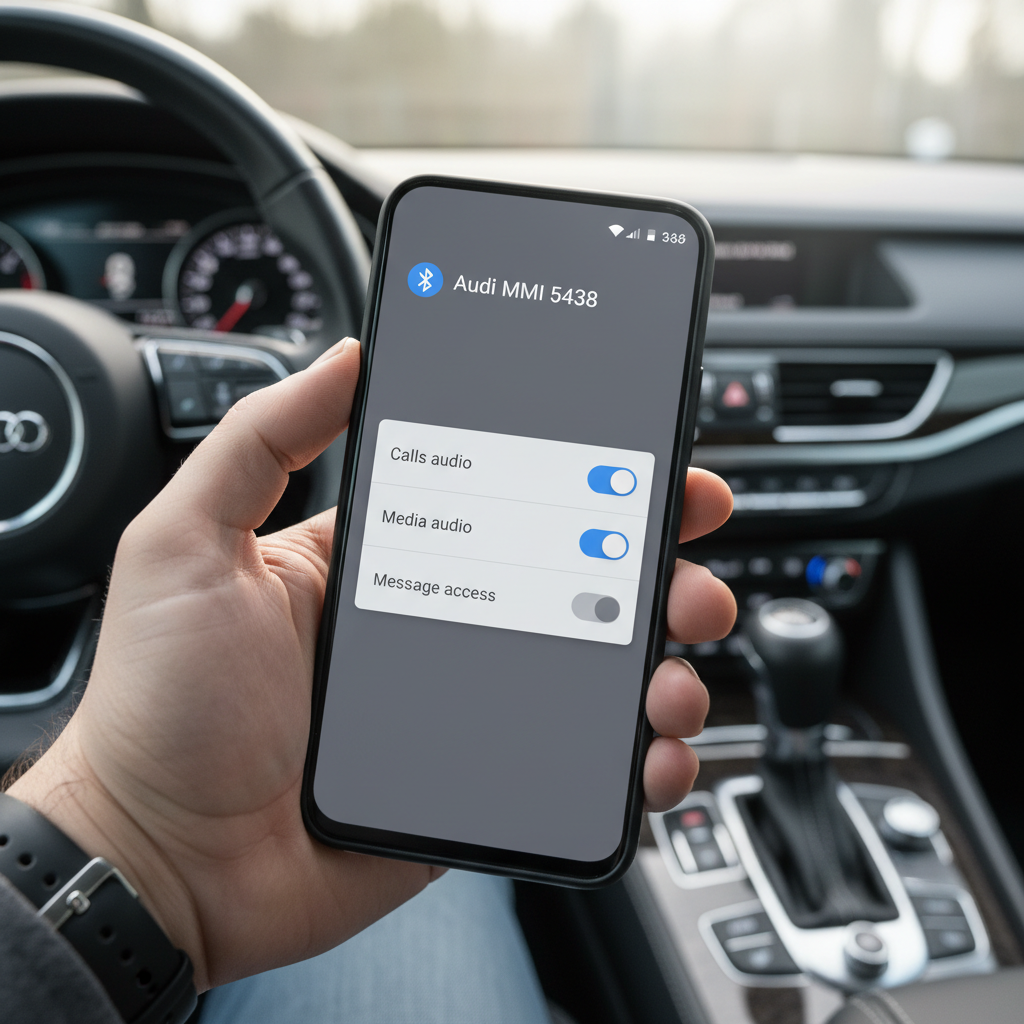
- If your car supports it, enable Phone audio and Media audio when prompted.
- Keep other nearby devices from trying to connect, especially if your car was previously paired to them.
If you’re pairing a rental, a used car, or a family car, assume the system has old devices saved. Clearing those often fixes pairing on the first attempt.
How to pair on most cars (the “standard” method)
If you only want the fastest path, this is it. The exact menu names vary, but the flow stays similar across Toyota, Honda, Ford, GM, Hyundai/Kia, Subaru, Volkswagen, and many others.
Step-by-step in the car
- On the car screen, open Settings or Phone or Connections.
- Choose Bluetooth → Add device or Pair new device.
- Leave the car on the “searching” screen so your phone can find it.
Step-by-step on your phone
- Open Bluetooth settings and look under Available devices.
- Tap the car name (it may be the model, “CAR MULTIMEDIA,” or a manufacturer label).
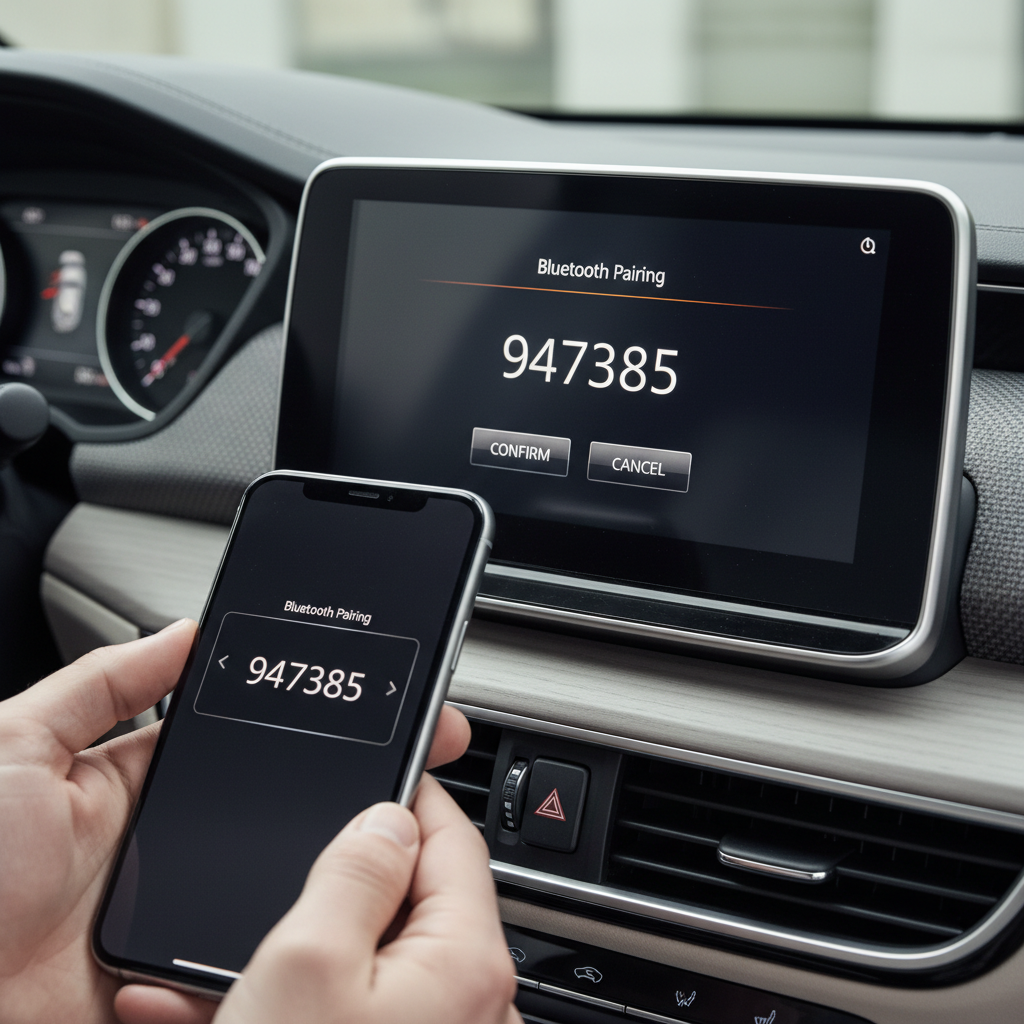
- Confirm the pairing code matches on both screens, then tap Pair.
When it works, your phone usually asks about contacts, notifications, and messages. If you want calling features to behave normally, approve the prompts you’re comfortable with, otherwise some cars show “connected” but won’t fully sync.
Quick self-check: which pairing problem are you dealing with?
Before you restart everything, identify the “type” of failure. Most fixes are obvious once you name the symptom.
- You can’t find the car in Bluetooth list: car not in pairing mode, car Bluetooth off, or car memory full.
- Car shows up, but pairing fails: wrong/old PIN, stale pairing record, or phone permissions glitch.
- It connects, but no audio: media audio disabled, wrong source selected, or app routing issue.
- Calls work, music doesn’t: “Media audio” toggle off for that device.
- Music works, calls don’t: “Phone audio” off, or contact access blocked.
- It keeps disconnecting: battery optimization, multiple phones competing, or head unit firmware bugs.
If you’re trying to figure out how to pair phone to car bluetooth in a vehicle that already has multiple phones saved, start by removing older devices from the car first. That step fixes a surprising share of cases.
Troubleshooting table (fast fixes that actually work)
Use this like a decision chart. Try one row at a time, and don’t stack five changes at once or you won’t know what helped.
| Symptom | Most likely cause | What to do (in order) |
|---|---|---|
| Car not visible on phone | Car not discoverable | Put car in “Add device” mode, toggle car Bluetooth off/on, then rescan |
| Pairing request times out | Old pairing record | Forget car on phone, delete phone from car, restart both, retry |
| Connected but no sound | Wrong audio route/source | Select Bluetooth audio source in car, enable Media audio in phone Bluetooth device settings |
| Calls echo or sound thin | Car mic/voice setting | Lower phone volume, check car call audio settings, disable “HD voice” toggle if car offers it |
| Disconnects randomly | Power saving or interference | Disable battery optimization for Bluetooth/media app, unpair extra phones, move USB chargers away from head unit if noisy |
| Pairing code mismatch | Wrong device selected | Cancel, confirm car name, remove duplicates like “Car Audio” vs “Car Audio LE,” retry |
Phone-specific steps (iPhone vs Android)
The car side stays similar, but iOS and Android hide key toggles in different places, and that affects how to pair phone to car bluetooth for calls, music, and messaging.
On iPhone (iOS)
- Go to Settings → Bluetooth, tap the car name, confirm it shows Connected.
- If music plays through the phone speaker, open Control Center and set audio output to the car (AirPlay icon).
- If the car supports it, prefer CarPlay for stability. Bluetooth still handles calls on some setups, but CarPlay often reduces “random disconnect” drama.
On Android
- Go to Settings → Connected devices → Bluetooth, tap the gear icon next to the car.
- Make sure Calls and Audio (sometimes “Media audio”) toggles are enabled.
- If it keeps dropping, check Battery settings for your music app and allow it to run in background, since aggressive power saving can break streaming.
One small reality check: Android menus differ by brand (Samsung, Pixel, Motorola), so if the toggle names don’t match exactly, look for anything labeled Calls, Media, or Audio under that Bluetooth device.
Common mistakes that waste time (and what to do instead)
These are the patterns that make people think Bluetooth is “just bad,” when it’s really one setting buried in a menu.
- Trying to pair while driving: beyond safety, you end up canceling prompts and creating half-finished pairings. Park, then pair.
- Not deleting old devices: many head units cap stored devices. If the list is full, new pairing fails silently.
- Pairing to the wrong entry: some cars show two options, like a low-energy profile and a media profile. If audio won’t play, try the other entry after removing both.
- Leaving Wi‑Fi/Bluetooth scanning “helpers” on: on some phones, enhanced scanning can cause weird reconnect loops. If you’re stuck, toggle Bluetooth off/on and retry with a fresh search.
- Assuming “Connected” means “Ready”: you may still need to set the car’s audio source to Bluetooth.
According to FCC, Bluetooth operates in the 2.4 GHz band, which is shared with Wi‑Fi and many accessories, so in busy RF environments you might see more drops than usual. If it’s only flaky in one location, interference is a reasonable suspect.
When you should update firmware or ask for help
If pairing works on other cars but not yours, or it breaks after an infotainment update, it might be a head unit software issue rather than your phone.
- Check your car maker’s site or dealer portal for infotainment firmware updates. Some updates improve Bluetooth compatibility across newer phones.
- If the car supports a master reset of the infotainment system, consider it after you’ve removed old devices. Expect to lose presets and saved settings.
- If the system reboots, freezes, or never enters pairing mode, a dealer or qualified car audio shop can help diagnose hardware faults.
For work vehicles with mobile device policies, you may also need IT guidance if profiles are restricted. That’s not common for personal phones, but it does show up in fleets.
Practical tips to keep the connection stable
Once you learn how to pair phone to car bluetooth, the real win is making it stay connected without rituals.
- Set a priority phone if your car offers it, so it doesn’t jump between devices.
- Limit the car to a few saved devices, keep the list clean.
- Use one primary audio app and keep it updated, outdated apps sometimes mis-handle Bluetooth audio focus.
- If audio stutters, try unplugging low-quality USB chargers, some create electrical noise that can affect connectivity in certain cars.
Key takeaways: Pairing mode on the car matters more than people think, deleting old pairings fixes many failures, and “connected” without selecting Bluetooth as the car’s source often looks like a broken system.
Conclusion: get paired once, then make it effortless
Most Bluetooth pairing issues come down to stale device records, missed permission prompts, or the car simply not being in discoverable mode. Clear old pairings, pair cleanly, confirm calls and media toggles, then lock in the right audio source.
If you want one action to take today, delete unused devices from your car’s Bluetooth list and redo pairing from scratch while parked, it’s the quickest way to get back to reliable hands-free calling and streaming.